How to reset your algorithm

With children and young people spending more time online, many parents worry about the type of content they may encounter online. Much of what we see on social media platforms is decided by an algorithms. Also referred to as a recommender system, over time it continually refines its recommendations towards what users are most likely to engage with, amplifying the content that captures their attention. On platforms like social media, search engines, and streaming services, algorithms decide what content is shown to users based on their preferences, behaviour, and interactions. Find out more about how algorithms work here: https://www.webwise.ie/news/explained-online-algorithms/
Under important new regulation in Europe (Digital Services Act) most popular social media platforms are required to give users the options to reset or depersonalise their newsfeeds or algorithms. By resetting suggested content or depersonalising newsfeeds this will allow young people to see posts, reels and other content about topics that you may not normally see and help avoid rabbit holes.
Help your teen manage their social media experience and maintain a balanced newsfeed back by encouraging them to regularly reset their algorithm. Below you will find instructions for resetting algorithms for each of the most popular social media platforms.
You can reset your suggested content on Instagram to see posts, reels and other content about topics that you may not normally see.
Resetting your suggested content won’t change who you follow or the ads that you see (if we show you ads on Instagram). You’ll be given a chance to review which accounts you follow (or the ads that you see if we show you ads on Instagram) before you reset.
After resetting your suggested content, your suggestions will become more personalised again as you interact with content on Instagram by liking, sharing or engaging with it.
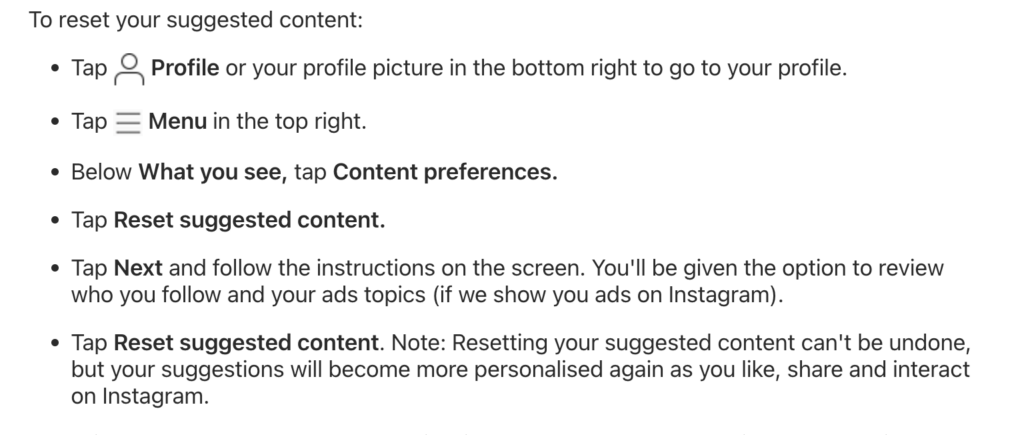
More information: https://help.instagram.com/556617736965724/?cms_platform=iphone-app&helpref=platform_switcher
Snapchat
In Settings you can enable “Reset Suggested Content” which allows you to “refresh” your public content feeds. When you enable Reset Suggested Content, most indicators used for personalization of your public content feeds will reset but not all. You may still see content or creators that you have followed, blocked or disliked and content tailored to your demographic.
Additionally, users can opt out from Personalisation on Public Content Feeds. In Discover and Spotlight, you can disable personalised content by either tapping on ‘…’ then ‘Why am I seeing this content?’ which will take you to Settings, or you can go directly to Settings and ‘Personalisation Controls.’ When you disable personalisation, public content will be recommended to you with basic data only, such as the language you have set on your phone, your age and your country. You will still see content, but it will be more random and less relevant to your interests. Snapchat note that you may experience some delay before the content experience changes.
More information: https://help.snapchat.com/hc/en-gb/articles/8961653169940-How-We-Rank-Content-on-Spotlight
TikTok
In Settings and Privacy in the account profile menu, users can opt to Refresh your For You Page.
When you choose this option, TikTok will display some popular content, and your interaction with this content, eg like likes and comments, will help shape future recommendations based on your interests.
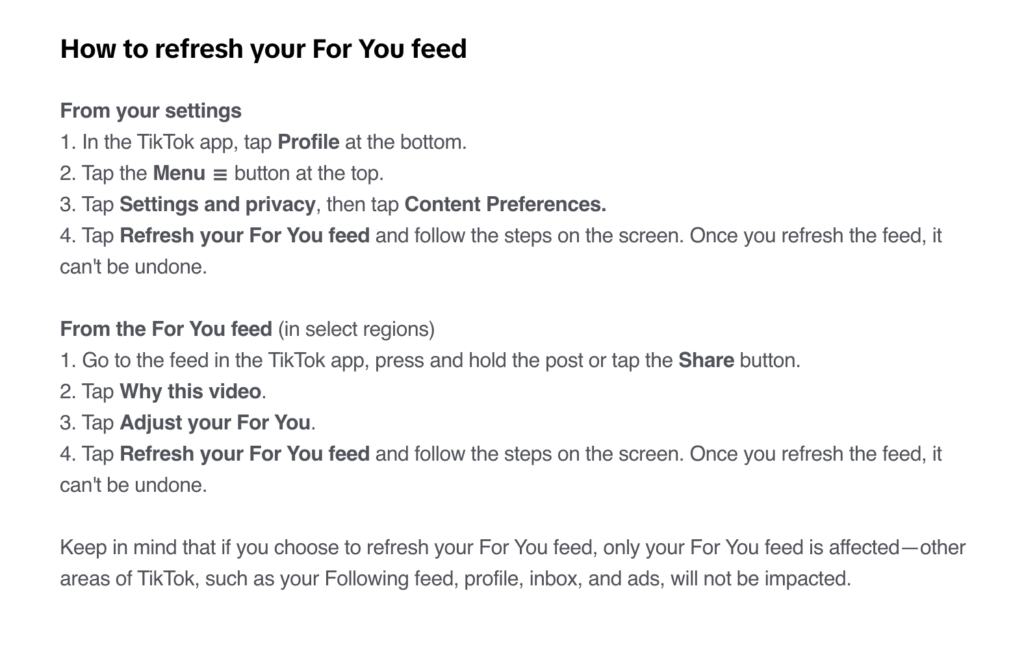
More information: https://support.tiktok.com/en/account-and-privacy/account-privacy-settings/refresh-your-for-you-feed
YouTube
YouTube offers users the option to remove specific videos from their watch history and searches from their search history. Users can also turn off watch and search history, or start fresh by deleting watch and search history.
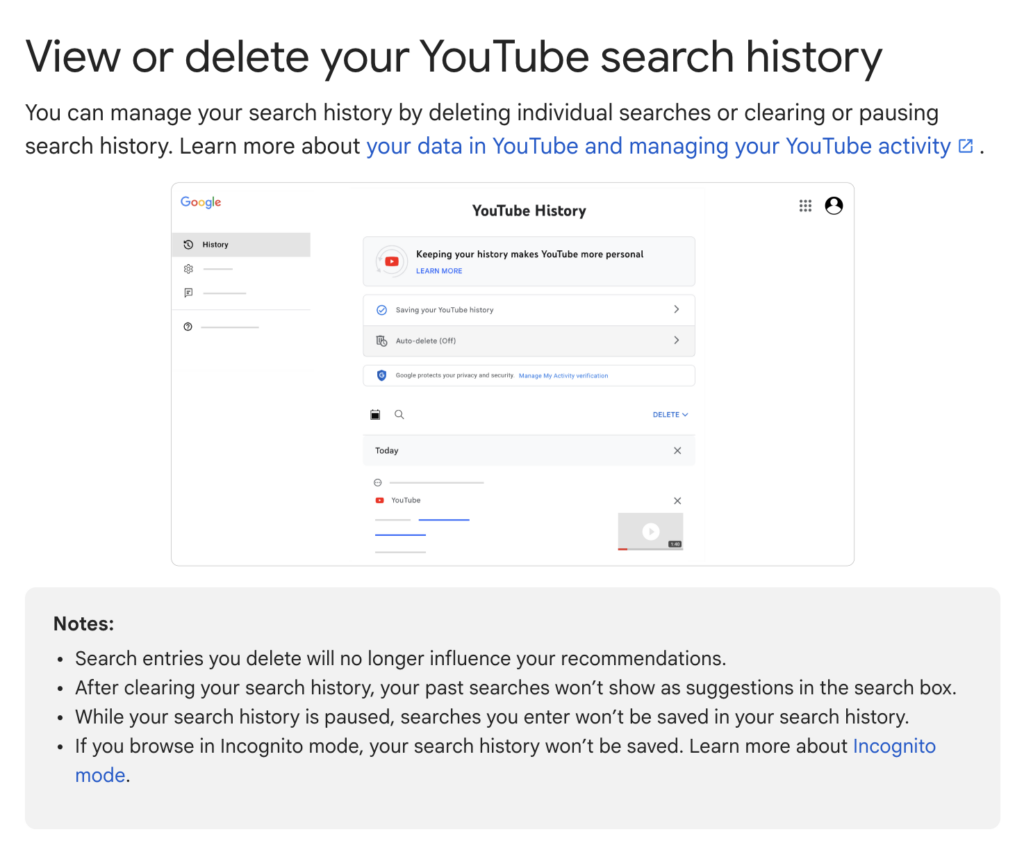
More information: https://support.google.com/youtube/answer/57711?sjid=10728297159259208677-EU
Mark content as “Not interested”
There are several ways to influence your YouTube recommendations and search results, including letting marking content (videos or channels) as Not Interested.
- Click More next to the title of the video, playlist, or section on Home.
- Click Not interested.
- If it’s a video, click Tell us why to share why you’re not interested. You can select I’ve already watched the video or I don’t like the video to further customize your recommendations.
Adjust channel recommendations
- On certain pages, such as the Home and Watch Next pages, find a video from a channel that you don’t want recommended to you.
- Click More next to the video title.
- Select Don’t recommend channel.
See fewer Shorts
On certain pages, such as the Home and Watch Next pages, you may also be recommended Shorts to watch. You can choose to see fewer of these.
- On the YouTube app, go to your Home feed.
- Scroll to a grid of Shorts.
- At the top of the grid, tap More.
- Tap Show fewer Shorts.
Turn off your history
You can turn off your watch or search history when you don’t want your watches or searches to influence future recommendations, search results, and other YouTube experiences that rely on your history.
Manage recommendations from your Google Activity
YouTube may also use data from your Google Account activity to influence your recommendations, search results, in-app notifications, and suggested videos in other places.
You can view and control your activity at myactivity.google.com. Learn more about controlling activity for your Google Account.
Manage liked videos
Your recommendations and search results are also based on videos that you’ve liked. You can like, dislike, and remove liked videos to influence your recommendations and search results.
More information: https://support.google.com/youtube/answer/6342839?hl=en